
Astropy
Astropy is a community python library for Astronomy to foster interoperability between astronomy packages.
Fedora Astronomy brings a complete open source toolchain to both amateur and professional astronomers.
The Spin provides the Fedora KDE desktop enhanced with a complete scientific Python environment and the AstrOmatic software for data analysis. KStars was added to provide a full featured astrophotography tool. As KStars uses the INDI library to control equipment, various telescopes, cameras etc. are supported. Summarized, Fedora Astronomy provides a complete set of software, from the observation planning to the final results.
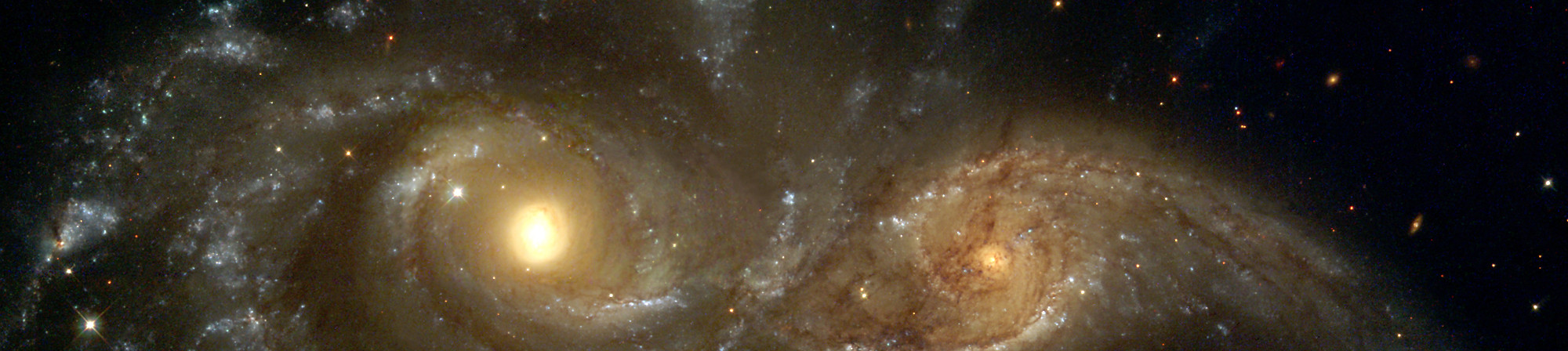
Astropy is a community python library for Astronomy to foster interoperability between astronomy packages.

Kstars provides an accurate graphical simulation of the night sky, from any location on Earth, at any date and time.

The free space simulation that lets you explore our universe in three dimensions.

Allow you to visualize any planet aspect at any time. Include extended feature database and texture.

Siril, a free astronomical image processing software.

The INDI Library is a cross-platform software designed for automation and control of astronomical instruments.

A powerful image composition and graphic editing app, similar to Adobe® Photoshop™.

Redshift adjusts the color temperature of your screen according to your surroundings.

AstrOmatic is a set of astronomical pipeline software.
Veröffentlichungsdatum: Dienstag, 23. April 2024
Nachdem Sie ein Image heruntergeladen haben, sollten Sie es auf Sicherheit und Integrität überprüfen.
Indem Sie die Prüfsumme des Images auf Ihrem eigenen Computer berechnen und mit der ursprünglichen Prüfsumme vergleichen, können Sie überprüfen, ob das Image nicht manipuliert oder beschädigt wurde. Die Images sind außerdem mit Fedora-Schlüsseln gpg-signiert, um ihre Integrität zu belegen.
Drücke die Verifizierungssachaltfläche um die Prüfsummendatei für dein Abbild herunterzuladen.
Fedoras GPG-Schlüssel importieren
curl -O https://fedoraproject.org/fedora.gpg
Sie können die Details der GPG-Schlüssel hier überprüfen.
Prüfe, ob die Prüfsummendatei gültig ist
gpgv --keyring ./fedora.gpg Fedora-Labs-40-1.14-*-CHECKSUM
Prüfen Sie, ob die Prüfsumme übereinstimmt
sha256sum -c Fedora-Labs-40-1.14-*-CHECKSUM
Die Datei ist bereit für den Einsatz, wenn die Ausgabe besagt, dass die Datei gültig ist. Wenn die Ausgabe besagt, dass die Datei richtig ist, kannst du sie benutzen.

By clicking on and downloading Fedora, you agree to comply with the Fedora Export Control Policy.