
GIMP
A powerful image composition and graphic editing app, similar to Adobe® Photoshop™.
Looking for a ready-to-go desktop environment brimming with free and open source multimedia production and publishing tools? Try the Design Suite, a Fedora Spin created by designers, for designers.
The Design Suite includes the favorite tools of the Fedora Design Team. These are the same programs we use to create all the artwork that you see within the Fedora Project, from desktop backgrounds to CD sleeves, web page designs, application interfaces, flyers, posters and more. From document publication to vector and bitmap editing or 3D modeling to photo management, the Design Suite has an application for you — and you can install thousands more from the Fedora universe of packages.
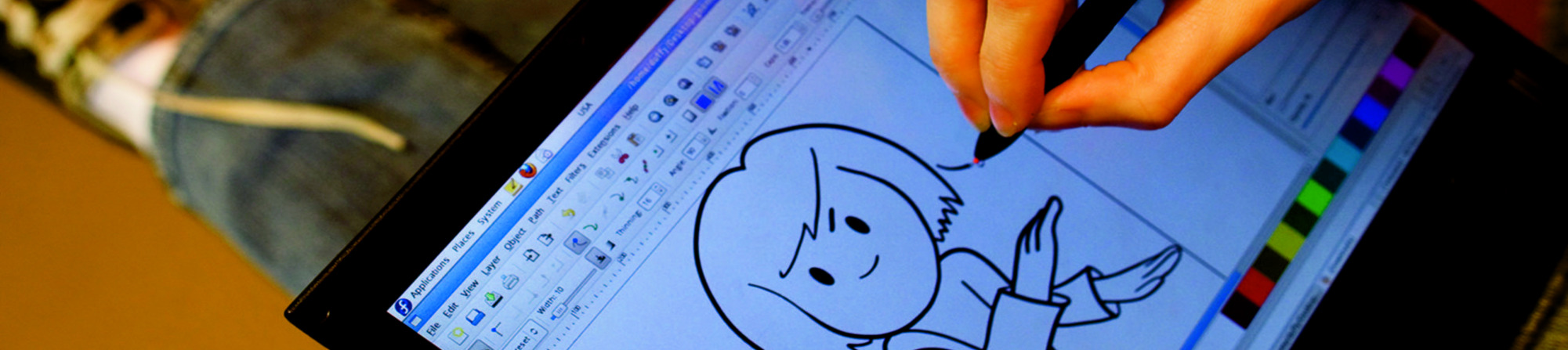
A powerful image composition and graphic editing app, similar to Adobe® Photoshop™.

An easy-to-use vector graphics editor, similar to Adobe® Illustrator™.

An all-in-one 3D graphics suite, with tools for modeling, animation, rendering and post-production.

A virtual light-table and darkroom for photographers; includes tools to develop and enhance raw images.

A creative sketching and digital painting app, modeled on real-life painting materials and workflows.

A desktop publishing and page layout application with professional publishing features.

Easy file sharing based on git. Share, backup, and collaborate on design assets.

A powerful multi-track non-linear video editor that includes editing, transcoding, effects and transitions.

Manage, install, and generate color profiles for your desktop. Keep your screen calibrated!
RELEASE DATE: Tuesday, April 23, 2024
Once you have downloaded an image, be sure to verify it for both security and integrity.
By calculating the image’s checksum on your own computer and comparing it to the original checksum, you can verify the image has not been tampered with or corrupted. Images are also gpg signed with Fedora keys to demonstrate their integrity.
Click the verify button to download the checksum file for your downloaded image.
Import Fedora's GPG key(s)
curl -O https://fedoraproject.org/fedora.gpg
You can verify the details of the GPG key(s) here.
Verify the checksum file is valid
gpgv --keyring ./fedora.gpg Fedora-Labs-40-1.14-*-CHECKSUM
Verify the checksum matches
sha256sum -c Fedora-Labs-40-1.14-*-CHECKSUM
If the output states that the file is valid, then it's ready to use!
By clicking on and downloading Fedora, you agree to comply with the Fedora Export Control Policy.